
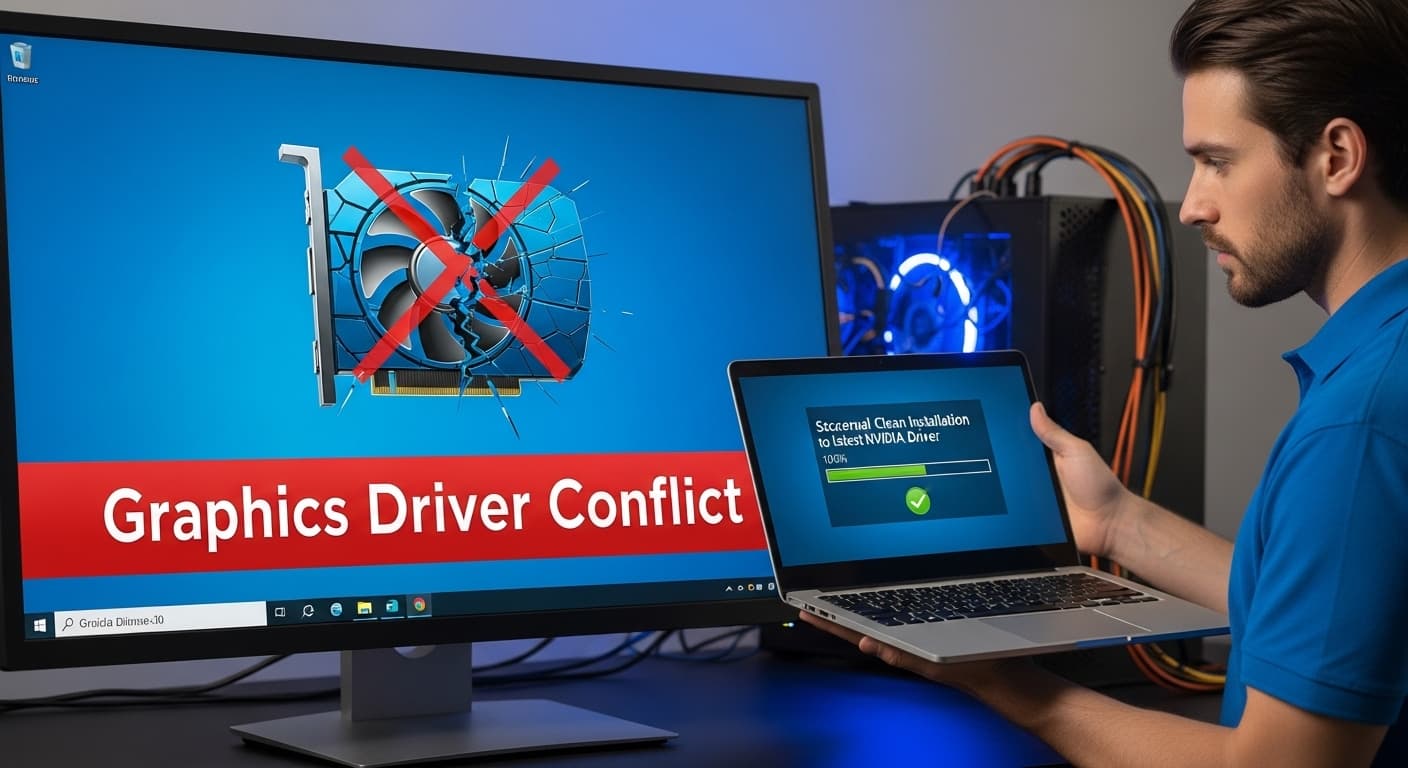
Graphics Driver Conflict
Error: Graphics Driver Conflict
Quick Fix
1. Open Device Manager. 2. Expand Display adapters. 3. Right-click your GPU and choose Update driver. 4. If update fails, uninstall the driver, reboot, and let Windows reinstall.
What it Means
The Graphics Driver Conflict error appears when two or more graphics drivers try to control the same hardware. This clash stops the display from initializing properly, causing black screens or system crashes.
Possible Causes
- 1Multiple GPU drivers installed (e.g., Intel + NVIDIA).
- 2Outdated or corrupted driver files.
- 3Incorrect driver installation order.
- 4Windows Update installs a conflicting driver automatically.
How to Fix
Step-by-Step Solutions
- Uninstall conflicting drivers
Open Device Manager, right-click each GPU under Display adapters, and select Uninstall device. Check "Delete the driver software for this device" to remove old files.
- Reboot and let Windows reinstall
After uninstalling, restart the PC. Windows will detect the GPU and install a generic driver, ensuring a clean slate.
- Download the latest driver from the manufacturer
Visit NVIDIA, AMD, or Intel’s support site, choose your GPU model, and download the latest driver package.
- Install the downloaded driver
Run the installer, choose a clean or express installation, and follow on-screen prompts.
- Disable automatic driver updates
Go to Settings → Update & Security → Windows Update → Advanced options → Disable driver updates to prevent future conflicts.
Commands You Can Try
Technical Details
Related Errors
Still stuck?
Pro tips
- Use DDU (Display Driver Uninstaller) in safe mode for a thorough cleanup.
- Keep a backup of your current driver before making changes.
- Check the GPU’s support page for a recommended driver version.
If the screen remains black after reinstalling drivers, or you see blue‑screen errors, contact Microsoft support or the GPU manufacturer’s help center.
If these solutions didn't help, try searching our database for similar issues.
Contact Support