
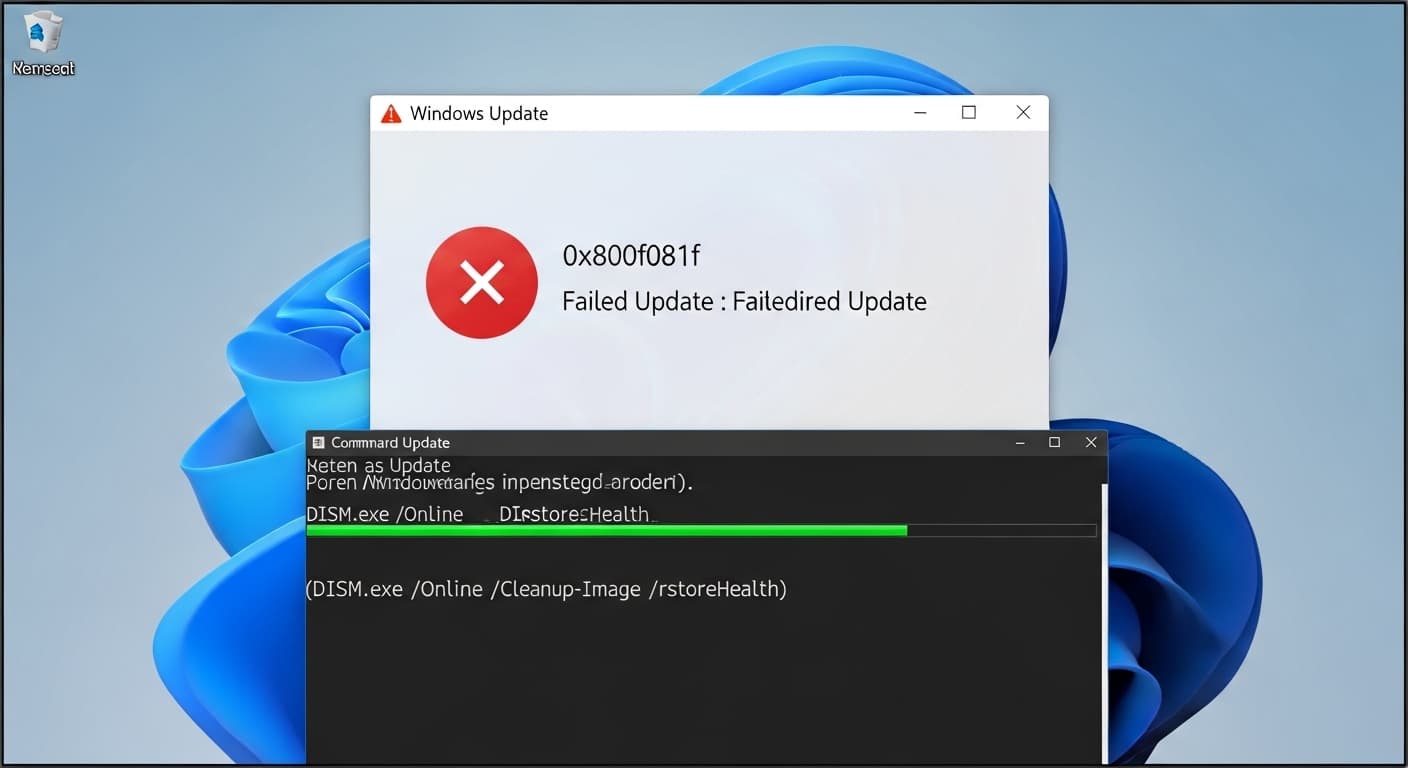
0x800f081f
Error 0x800f081f: Windows Update Failed
Quick Fix
Run the Windows Update Troubleshooter, then execute DISM /Online /Cleanup-Image /RestoreHealth and sfc /scannow to repair corrupted files.
What it Means
The 0x800f081f code appears when Windows cannot download or install an update because the component store is damaged or missing files. It stops the Update Service from applying critical patches.
Possible Causes
- 1Corrupted component store (CBS)
- 2Missing or damaged update files
- 3Incorrect Windows Update service settings
- 4Network or proxy issues
- 5Wrong system time and date
How to Fix
Step-by-Step Solutions
- Open Settings → Update & Security → Troubleshoot → Additional troubleshooters → Windows Update
Launch the built‑in troubleshooter to automatically detect and fix common update problems.
- Run DISM to repair the component store
DISM scans the Windows image for corruption and replaces damaged files.
DISM /Online /Cleanup-Image /RestoreHealth - Run SFC to verify and repair system files
SFC checks all protected system files and restores them if needed.
sfc /scannow - Reset Windows Update components
Stop services, rename SoftwareDistribution and Catroot2 folders, then restart services to clear stale data.
net stop wuauserv && net stop bits && net stop cryptsvc && net stop msiserver && ren C:\\Windows\\SoftwareDistribution SoftwareDistribution.old && ren C:\\Windows\\System32\\catroot2 Catroot2.old && net start wuauserv && net start bits && net start cryptsvc && net start msiserver - Delete the SoftwareDistribution folder
Removing the folder forces Windows to rebuild the update cache, eliminating corrupted downloads.
rd /s /q C:\\Windows\\SoftwareDistribution - Check date and time settings
Incorrect time can block updates; set to automatic or correct manually.
Commands You Can Try
Technical Details
Related Errors
Still stuck?
Pro tips
- Use the latest Windows Update Agent version
- Keep system drivers up to date
- Run updates in safe mode if network problems persist
- Check for pending restarts before applying updates
If the error persists after running all commands, after a clean boot, or if you suspect hardware failure, contact Microsoft Support or a qualified technician.
If these solutions didn't help, try searching our database for similar issues.
Contact Support