
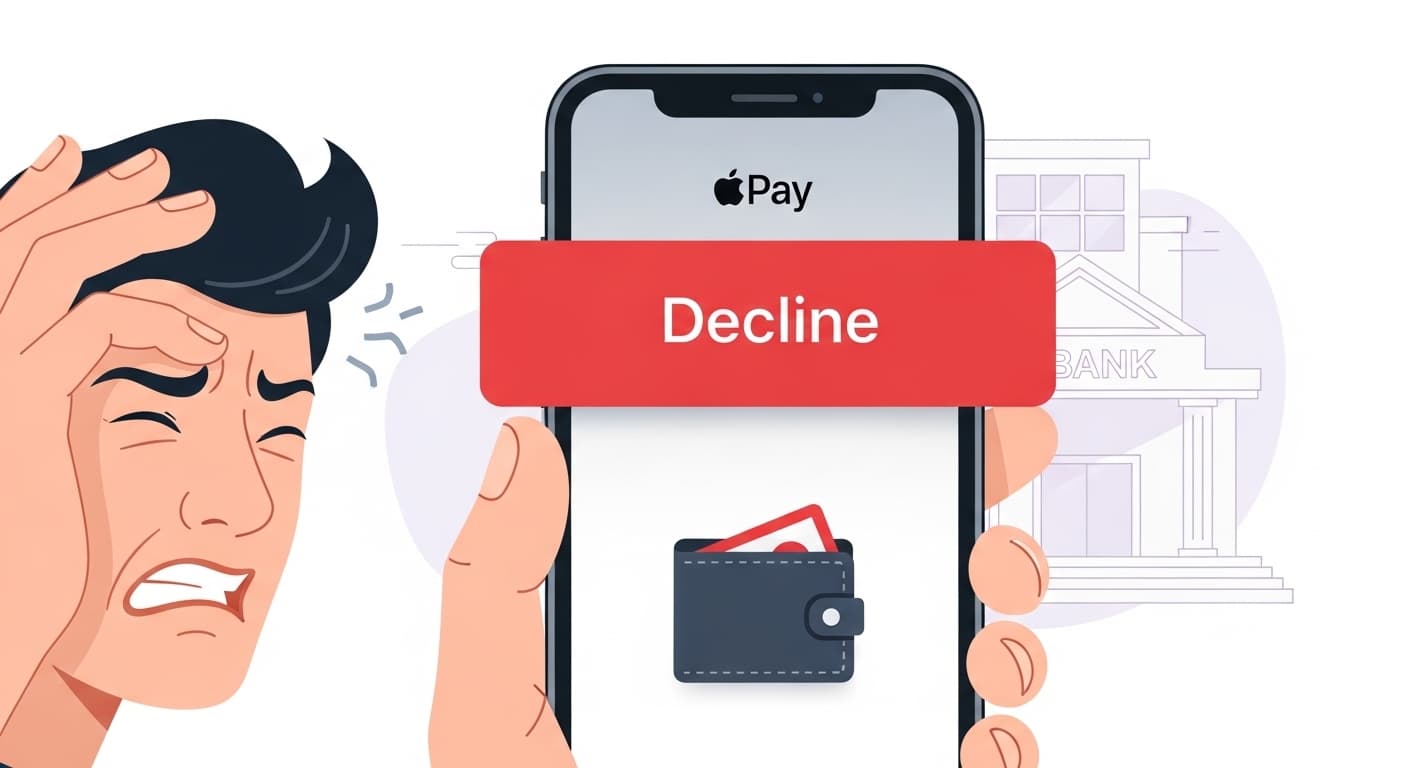
Apple Pay Decline Error
Apple Pay Decline Error
Quick Fix
1. Check your card details and balance. 2. Ensure you have a stable internet connection. 3. Restart your device and try again. 4. If it still fails, contact your bank or Apple Support.
What it Means
The Apple Pay Decline Error occurs when a payment request is rejected by the card issuer or Apple Pay service. It shows up as a red banner saying ‘Decline’ on the screen, meaning the transaction cannot be processed.
Possible Causes
- 1Insufficient funds or credit limit reached
- 2Card expired or blocked
- 3Network or connectivity issues
- 4Apple Pay account not set up correctly
- 5Merchant’s system error
- 6Fraud protection flag on the card
How to Fix
Step-by-Step Solutions
- Verify Card Balance
Open your banking app or website to confirm you have enough funds or credit available. A decline often happens if the balance is too low.
- Check Card Expiry
Make sure the card’s expiration date is still valid. Expired cards will always be declined.
- Restart Device
A quick restart clears temporary glitches in the Wallet app and can resolve connectivity hiccups.
Press and hold the side button and either volume button until the slider appears, then slide to power off. Turn on again. - Re‑add Card to Wallet
Removing and re‑adding the card forces a fresh authentication and can clear stale data causing declines.
Open Wallet, tap the card, choose ‘Remove Card’, then add it back via the + icon. - Contact Your Bank
If the card is active and you still see declines, the bank may have blocked the transaction for security reasons. Call the customer service number on the back of the card.
Technical Details
Related Errors
Still stuck?
Pro tips
- Use a reliable Wi‑Fi connection when making large purchases
- Enable two‑factor authentication on your Apple ID for extra security
- Keep your iOS updated to the latest version for bug fixes
- Check the Apple Pay status page for any known outages
If you’ve tried all steps and Apple Pay still declines, or if you suspect fraud, contact your bank’s support or Apple Support immediately. Do not ignore repeated declines, as they may indicate a security issue.
If these solutions didn't help, try searching our database for similar issues.
Contact Support