
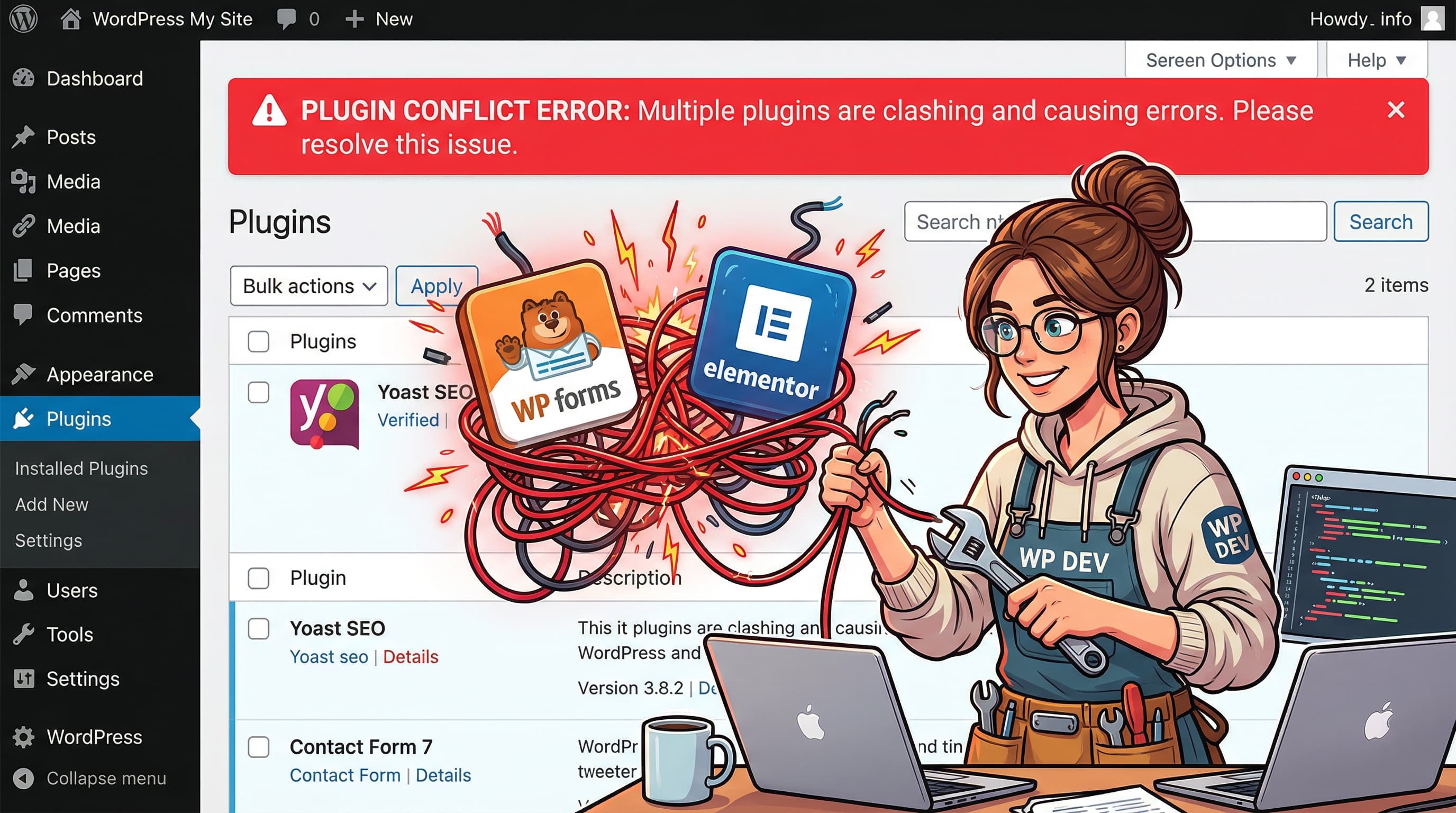
Plugin Conflict Error
Error: Plugin Conflict Error
Quick Fix
Deactivate all plugins, then reactivate one by one until the error reappears. Once found, update or replace the conflicting plugin.
What it Means
The Plugin Conflict Error happens when two or more WordPress plugins use the same functions, hooks, or database tables, causing a clash. WordPress stops loading to prevent site crashes, displaying this error.
Possible Causes
- 1Duplicate function names
- 2Conflicting hooks or filters
- 3Database table conflicts
- 4Outdated plugin versions
How to Fix
Step-by-Step Solutions
- Deactivate All Plugins
Log in to the WordPress admin, go to Plugins > Installed Plugins, and bulk deactivate all plugins to clear the conflict.
- Reactivate Plugins Individually
Enable plugins one by one, refreshing the site after each activation to see when the error returns.
- Identify the Conflicting Plugin
The plugin that triggers the error is the culprit. Note its name for further action.
- Update or Replace the Plugin
Visit the plugin’s page to check for updates. If none, look for an alternative plugin that offers similar features without conflicts.
- Check for Hook Conflicts
If you’re a developer, inspect the plugin code for add_action or add_filter calls that might clash with others.
grep -R "add_action" /wp-content/plugins/
Commands You Can Try
Technical Details
Related Errors
Still stuck?
Pro tips
- Use a staging site to test plugin changes before applying to live site
- Keep a backup of your site before making plugin changes
- Use a plugin conflict checker tool like "Plugin Detective"
If the conflict persists after updating or replacing plugins, or if you’re unsure which plugin is causing the issue, contact the plugin developer or a WordPress support professional.
If these solutions didn't help, try searching our database for similar issues.
Contact Support