
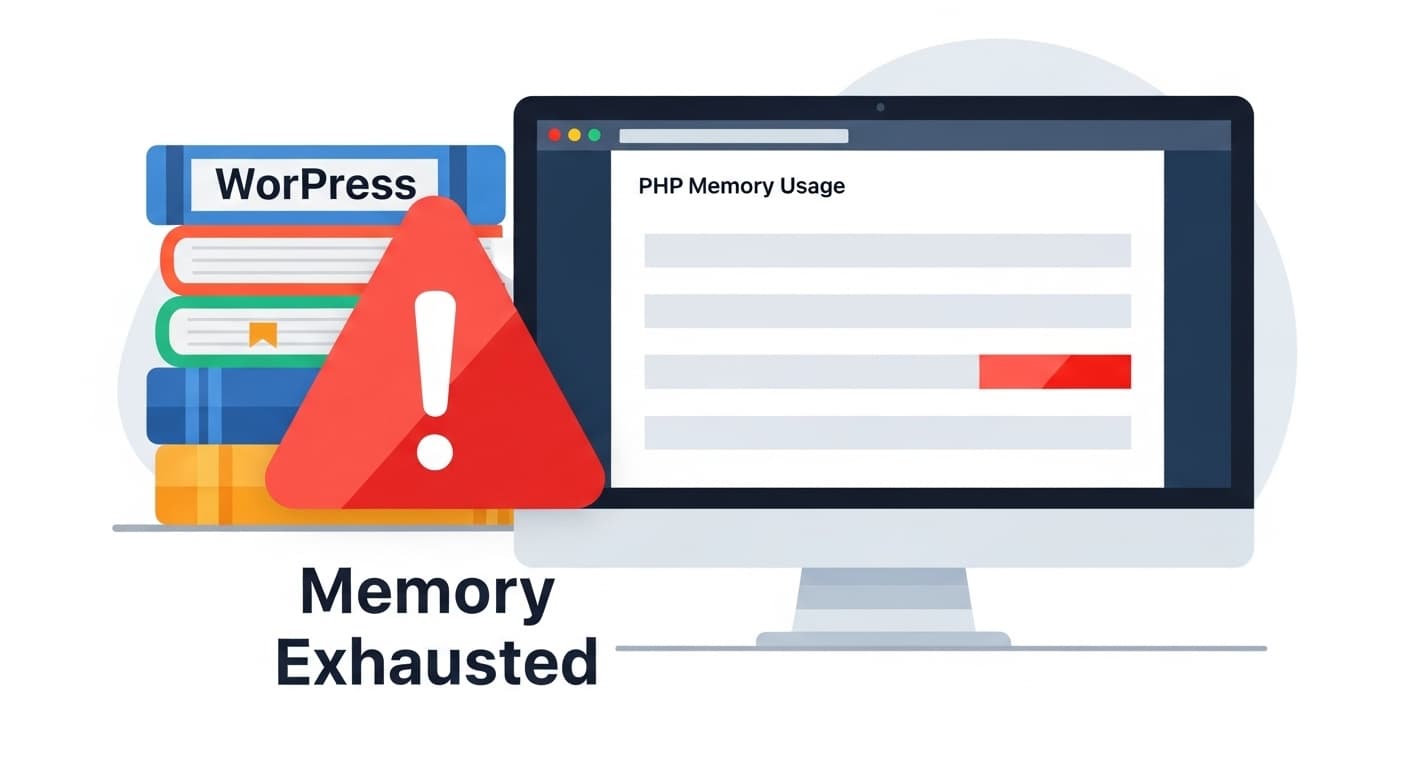
Memory Exhausted Error
WordPress Memory Exhausted Error
Quick Fix
Increase PHP memory limit, disable heavy plugins, clear cache, restart server.
What it Means
The Memory Exhausted Error in WordPress means PHP ran out of allocated memory while executing a request. It stops the page load and shows an error to the user.
Possible Causes
- 1PHP memory_limit reached
- 2Large or poorly coded plugins/themes
- 3High traffic spikes
- 4Insufficient server RAM
- 5Memory leaks in custom code
How to Fix
Step-by-Step Solutions
- Edit wp-config.php
Add or modify the line define('WP_MEMORY_LIMIT','256M'); to give WordPress more memory.
- Change php.ini
Locate php.ini and set memory_limit = 256M; then restart the web server to apply changes.
- Disable heavy plugins
Go to the Plugins page, deactivate plugins that consume a lot of memory or replace them with lighter alternatives.
- Clear cache
Use WP-CLI or a caching plugin to flush all cached data, freeing memory.
wp cache flush - Check memory usage
Run a quick memory check to see peak usage and identify leaks.
wp eval 'echo memory_get_peak_usage();'
Commands You Can Try
Technical Details
Related Errors
Still stuck?
Pro tips
- Enable object caching with Redis or Memcached
- Use a lightweight theme like GeneratePress
- Turn on WP_DEBUG to log memory usage
- Schedule regular plugin updates
If the error persists after increasing memory limits and cleaning cache, contact your hosting provider or a WordPress developer for deeper diagnostics.
If these solutions didn't help, try searching our database for similar issues.
Contact Support