
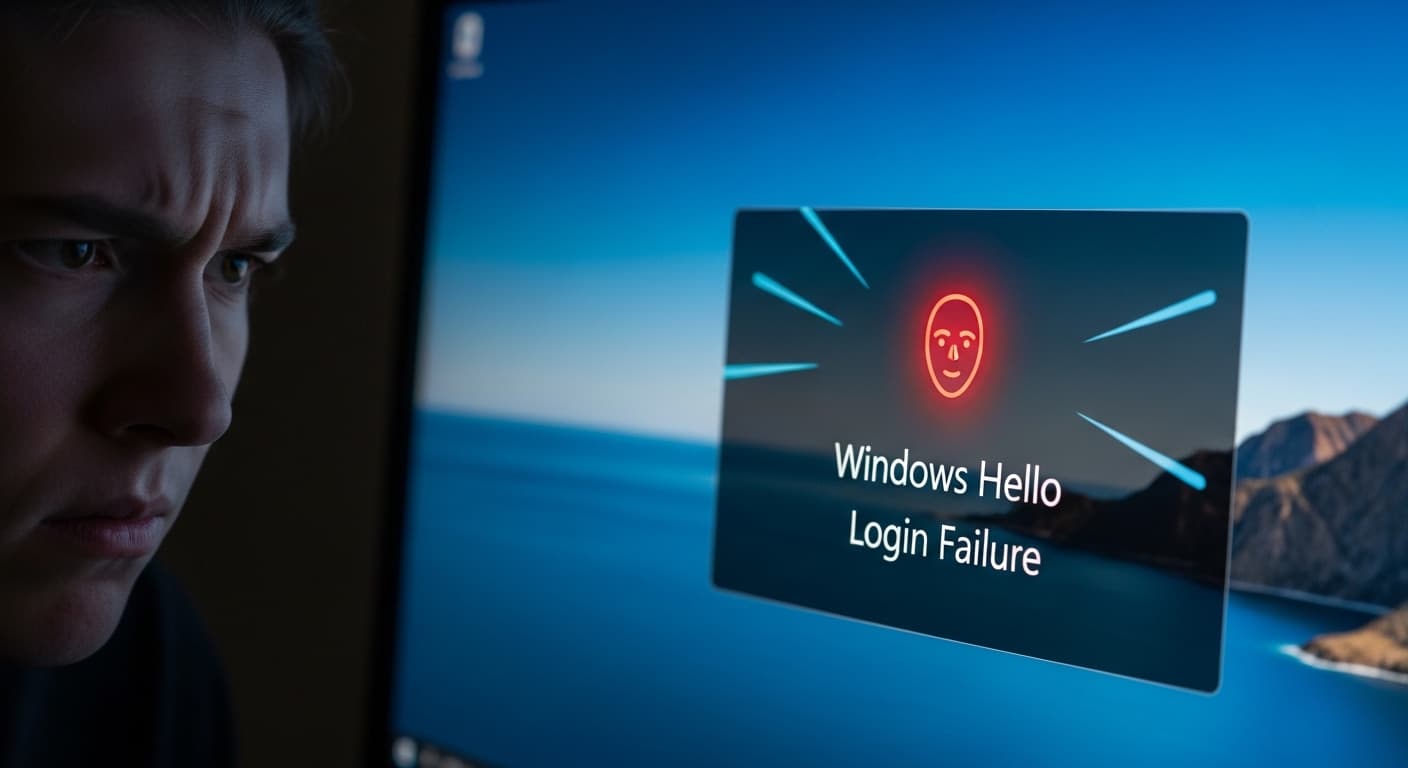
Windows Hello Login Failure
Windows Hello Login Failure: Unable to Authenticate
Quick Fix
Restart your PC, clean your face or finger, ensure the camera or sensor is enabled, then reset Windows Hello in Settings → Accounts → Sign‑in options.
What it Means
The error means Windows Hello couldn’t verify your biometric data or PIN, blocking access to your Windows account.
Possible Causes
- 1Camera or sensor not working or blocked
- 2Biometric data corrupted
- 3Windows Hello service stopped
- 4Driver outdated
- 5Security policy blocking biometric authentication
How to Fix
Step-by-Step Solutions
- Verify Camera/Sensor
Open Settings → Privacy → Camera to ensure apps can access the camera. Make sure the sensor is not physically blocked.
- Re‑register Windows Hello
Go to Settings → Accounts → Sign‑in options → Windows Hello Face or Fingerprint, remove existing profile, and set up again.
- Restart Windows Hello Service
Open Services (services.msc), locate Windows Hello Face Service or Fingerprint Service, right‑click → Restart.
sc stop Wlms && sc start Wlms - Update Drivers
Open Device Manager, expand Imaging Devices or Biometric Devices, right‑click your device → Update driver.
- Run Windows Troubleshooter
Settings → Update & Security → Troubleshoot → Additional troubleshooters → Windows Hello.
Commands You Can Try
Technical Details
Related Errors
Still stuck?
Pro tips
- Keep your face or finger clean to avoid sensor errors
- Use a PIN as a backup
- Enable biometric authentication in Group Policy if disabled
- Check for Windows updates regularly
If after following all steps you still cannot log in, contact Microsoft Support or your device manufacturer, especially if the hardware sensor is physically damaged.
If these solutions didn't help, try searching our database for similar issues.
Contact Support