
Instagram Login Error? Quick Fixes & Common Causes Explained
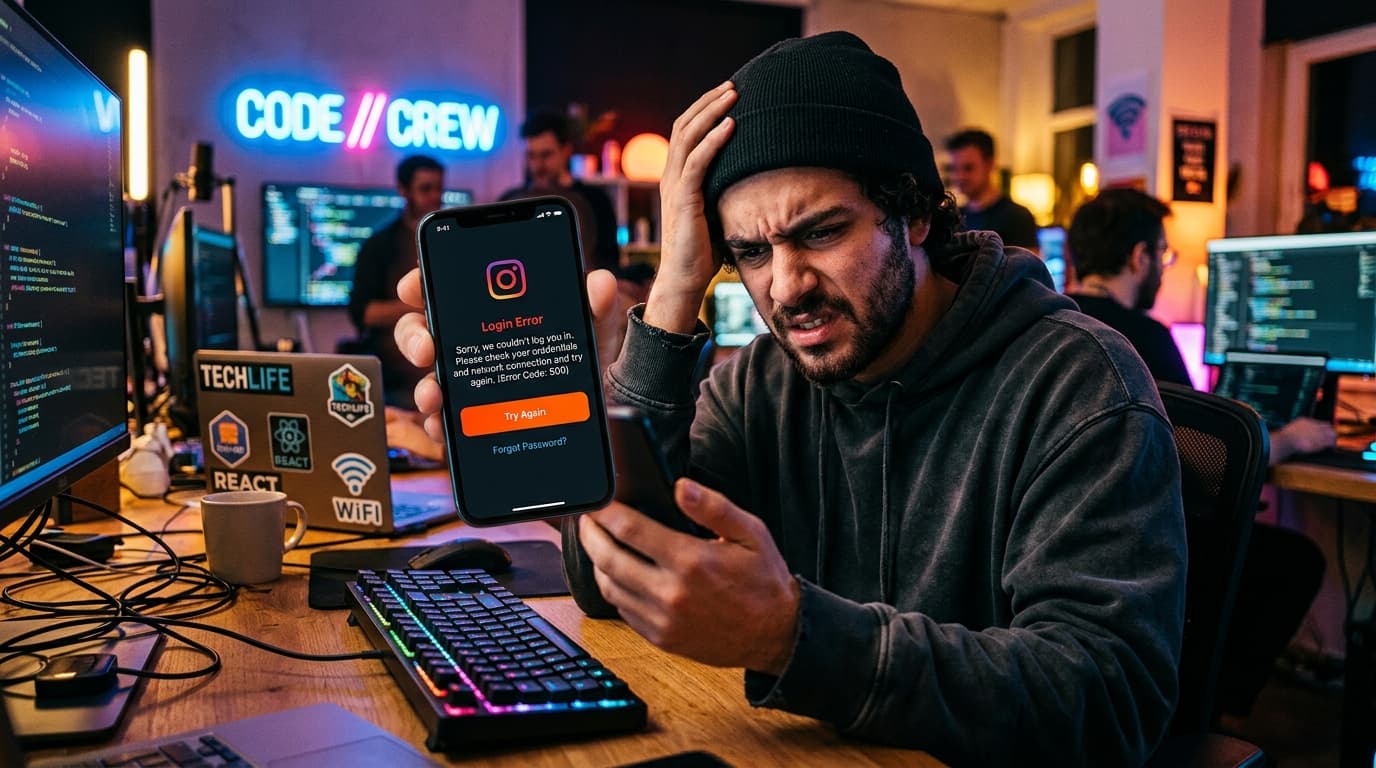
Logging into Instagram should be a quick tap, but sometimes a frustrating error message pops up instead. Whether it’s a “Wrong password” prompt, a “Login from a new device” warning, or a generic “Something went wrong” screen, the good news is most of these hiccups are easily solved.
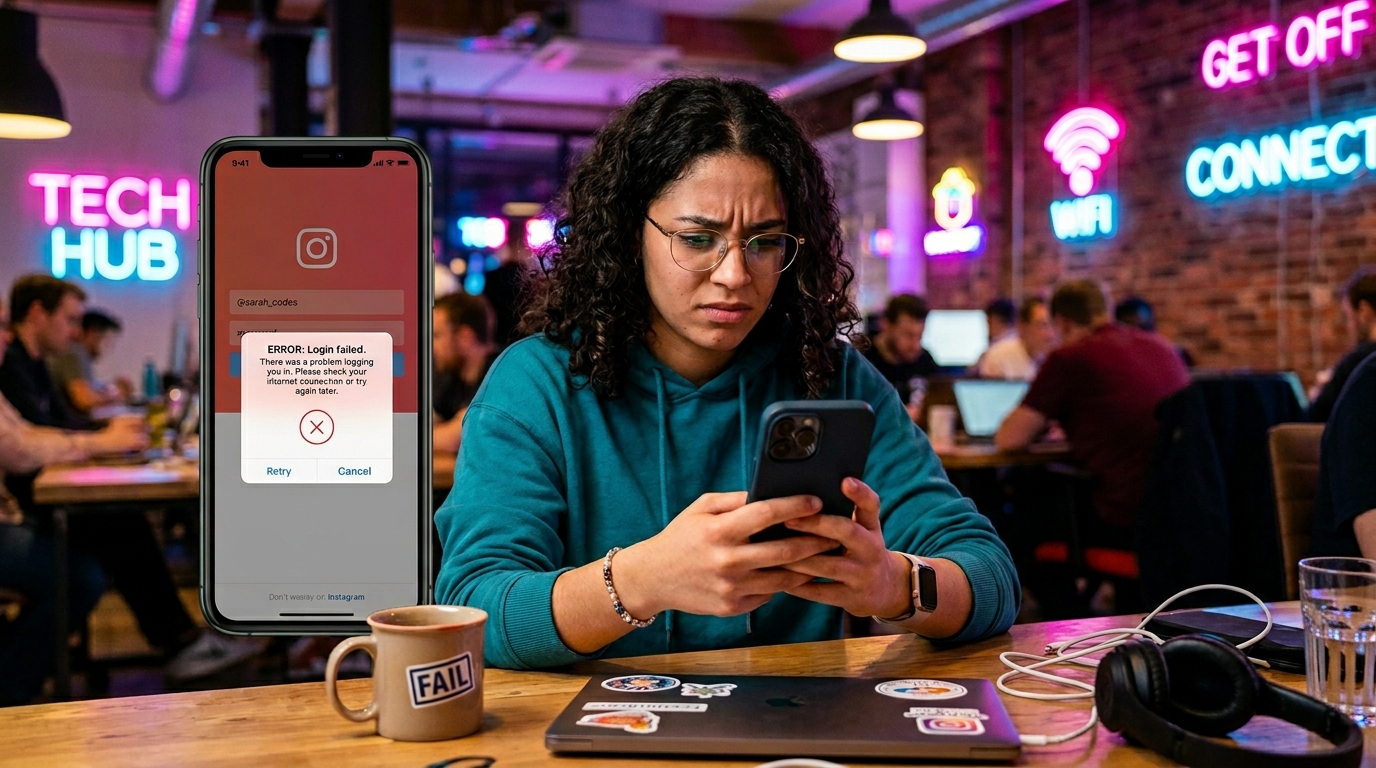
Common Causes of Instagram Login Errors
Incorrect password or username
Two‑factor authentication (2FA) challenges
Weak or unstable internet connection
Outdated or buggy Instagram app
Account compromised or temporarily locked
Device security settings blocking the app
Server‑side outages or maintenance
Quick Fixes for Each Cause
1. Wrong Password or Username
Double‑check your credentials. If you’ve forgotten your password, tap Forgot password? and follow the reset flow.
2. Two‑Factor Authentication Issues
Make sure your phone’s time and date are set correctly. If you’re missing the code, request a new one via SMS or use an authenticator app.
3. Unstable Internet Connection
Switch from Wi‑Fi to mobile data or vice versa.
Restart your router or reset your mobile hotspot.
Clear your browser or app cache.
4. Outdated App
Open your app store, search for Instagram, and tap Update. If the update fails, uninstall and reinstall the app.
5. Account Compromised or Locked
Instagram may temporarily lock accounts that show suspicious activity. Go to the login page, tap Need help?, and follow the prompts to verify your identity.
6. Device Security Settings
Check your phone’s security settings. On Android, ensure “Unknown sources” is enabled if you’re installing via a third‑party store. On iOS, review the app permissions in Settings.
7. Server‑Side Outages
Occasionally Instagram’s servers experience downtime. Check Downdetector or the official Twitter account for real‑time status updates.
Advanced Troubleshooting
Clear app cache (Android) or reinstall the app (iOS).
Reset your device’s network settings.
Use a different device or browser to isolate the problem.
Check for any pending system updates on your device.
Contact Instagram Support via the help center if the issue persists.
Preventing Future Login Issues
Enable two‑factor authentication for added security.
Keep the Instagram app updated automatically.
Use a strong, unique password and store it in a password manager.
Regularly review your connected devices in account settings.
Stay alert for phishing attempts that could compromise your credentials.
FAQs
Q: Why does Instagram lock my account after multiple failed login attempts?
A: Instagram temporarily locks accounts to protect against brute‑force attacks. Resetting your password and verifying your identity will unlock it.Q: Can a VPN cause login errors on Instagram?
A: Yes, some VPN servers may trigger Instagram’s security checks. Try disconnecting the VPN or switching to a different server.Q: How do I know if Instagram is down for everyone or just me?
A: Use Downdetector or check the official Instagram Twitter feed for widespread outages.